
Site intelligence
Understand where an observation or record belongs. Move from a site-wide view to the relevant location and evidence.
Explore the site workflowProducts / Flybi V7
Flybi’s site-intelligence product connects the physical site, dated captures, inventory records and reporting in one workspace.
For operations, engineering and finance: move from the yard to the record behind a quantity, then to the output your team needs.
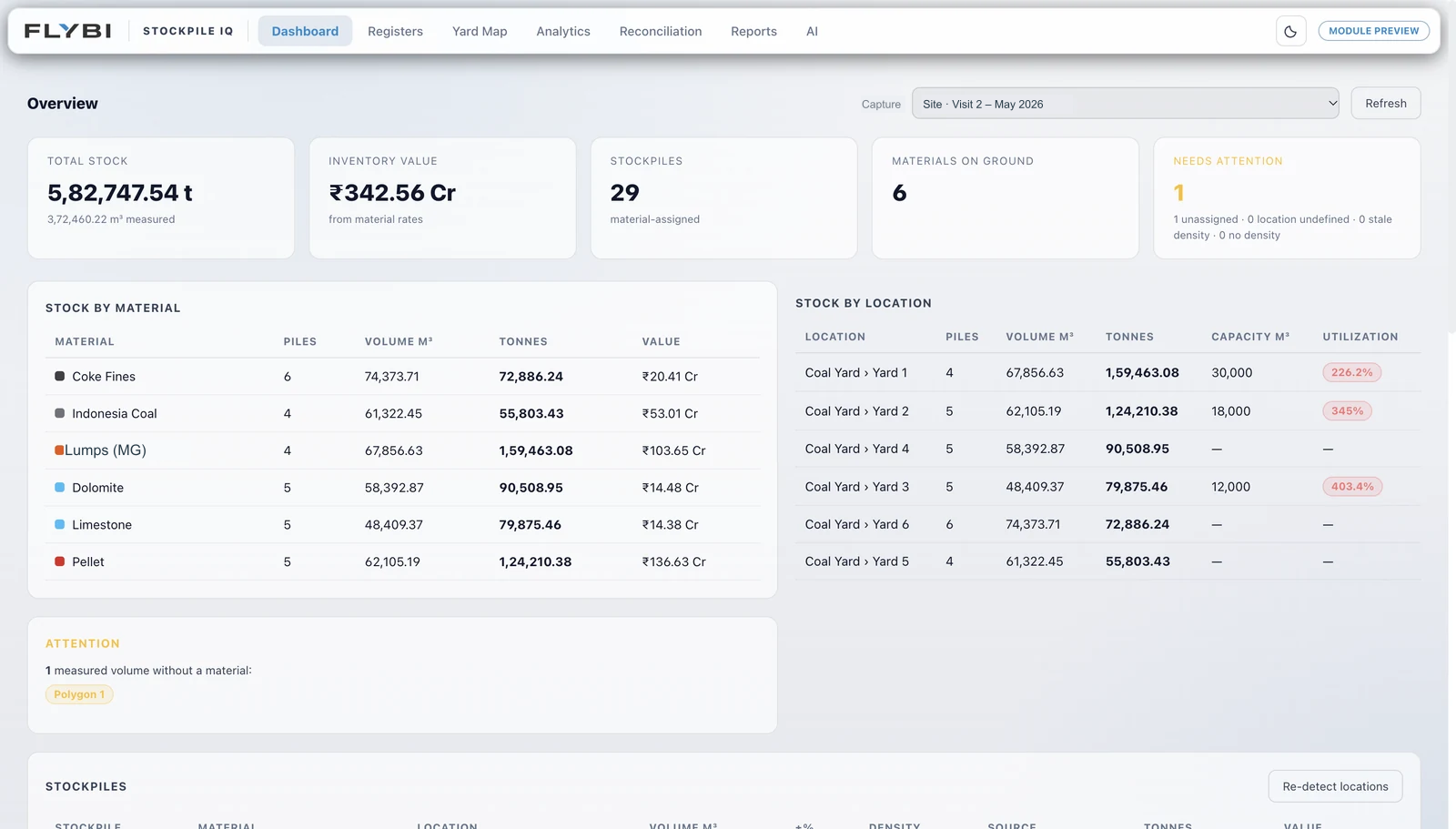
Real interface · Stockpile IQ module preview · Site identity withheld
A working view of your site
Explore four authentic V7 views: the yard, inventory, reporting and the site workspace. Select a view, then open the full screen for detail.
The V7 Yard Map connects the selected visit with the actual stockyard, material legend and labelled piles. See where a quantity belongs before reviewing the record.
The inventory overview brings material quantities and site totals into the selected visit. Use the capture context and measurement basis to frame the inventory review.
The captured Reports view offers Complete, Summary, Detailed, Material-wise and Location-wise breakdowns, with PDF, Excel and CSV controls. Scope the required handover with the team.
The V7 workspace places the stockyard surface beside its view and measurement tools. Explore the spatial context in the full capture; site-identifying details are withheld.
Authentic V7 interface captures. Stockpile IQ views retain their module preview labels; site-identifying details are withheld. These screens are not a live account.
One platform story. Different questions.
The solution defines what is captured, how it is interpreted and what your team receives.
V7 is the connecting layer. The workflow and available views depend on the solution and project scope.
Explore Air IQ’s product direction: observations, site context and clearly identified modelled scenarios.
Explore Environmental 02Connect the yard map, material inventory and visit-specific reporting shown in the V7 tour.
Explore StockpileReview how acquisition coverage, processed maps and interpretation support exploration decisions.
The tour shows the V7 workspace and Stockpile IQ. Other workflows and available views depend on the solution and project scope.
Keep the context intact
Keep the selected site and capture date connected as the conversation moves from field specialists to operations, engineering and finance.
Select the site and capture period before opening a spatial view or reading quantities.
Site · Date · CaptureConnect geometry and records with the control, calculation method and interpretation behind them.
Context · Method · InterpretationChoose the report breakdown, review basis and handover format that fit the receiving team.
Review · Report · HandoverBefore we begin
Start with the solution, site and decision you are working on. A walkthrough can focus on the relevant workflow, available views and expected deliverables.
Your area of interest, a brief description of the site and the questions your team needs to answer. A detailed technical brief is not required to begin.
No. Views and outputs vary by solution and agreed scope. This tour includes the V7 site workspace and Stockpile IQ views. Module preview labels remain visible; site-identifying details are withheld.
Explore the platform in more detail
The site view and the report serve different decisions. Keep their relationship visible.
Understand where an observation or record belongs. Move from a site-wide view to the relevant location and evidence.
Explore the site workflowReview the visit, quantities and measurement basis before using the resulting report. Start with a consistent record, then agree the output.
Explore measurement & reportingA walkthrough with your work in mind
We’ll focus the walkthrough on your site, reporting cycle and the people who use the result.